Sharing and Networking FarmIT 3000
Overview
Sharing or networking your FarmIT database between multiple computers on your own
local network is very easy. The FarmIT data is stored in a standard Microsoft Access
database file. The FarmIT program then connects to this data via a standard
protocal known as ODBC. Connections to ODBC databases are configured on your computer
via the Windows control panel "Adminstrative Tools" section. During the installation
of the software the installation program creates the ODBC configuration settings
which the program then uses to connect to the database. FarmIT also has a number
of folders where specific configuration information, program report templates and
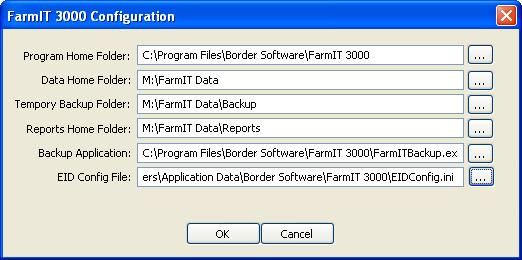
maps are stored, you may also change the location of these.
The default installation process installs the FarmIT Program and database to the
'C:\FarmIT 3000' folder. The database is stored in a subfolder
called 'Database'. You can actually select an alternative installation folder during
the installation and we would even recommend this when installing on Windows Vista.
If you go to the windows control panel and open the Data Sources (ODBC) you will
be able to view or modifiy the ODBC connection to the database. The FarmIT ODBC
information is listed under 'System DSN' tab...
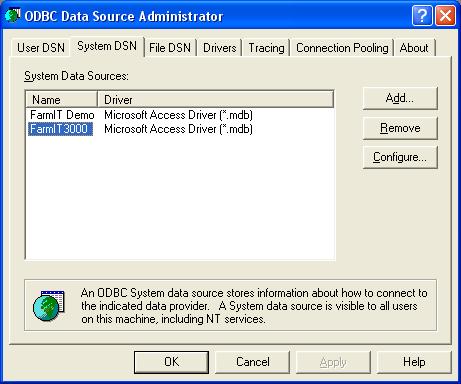
You may edit the settings by clicking the 'Configure...' button or add a new connection
by clicking the 'Add...' button. If you select 'add' you will prompted to select the
driver, you must select Microsoft Access Driver ( *.mdb). The data source name is
merely a name to identify the connection. You could for example call a new connection
'FarmIT Shared'...
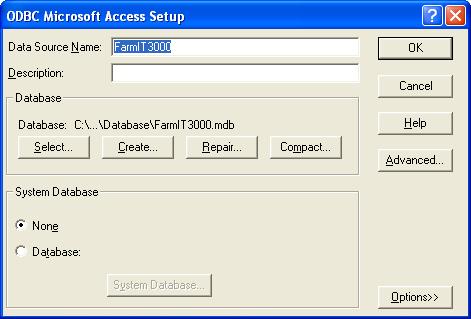
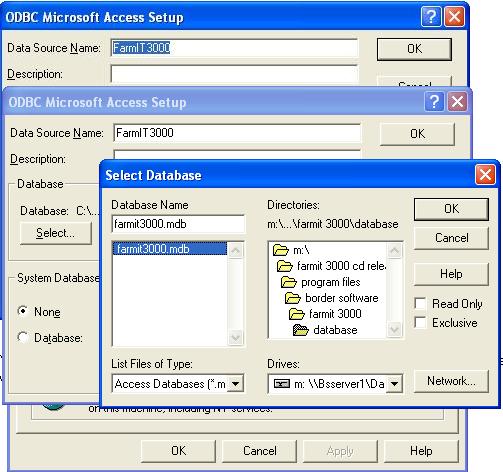
You may select an alternative FarmIT database by clicking on the 'Select' button
and using the normal windows browsing system to select the alternative database file...
Setting Up On Multiple Machines.
1. Install the Software
First install FarmIT 3000 on each machine. If you are sharing the database from
a server but not running the software on the server, you do not need to install
it on the server.
2. Copy the Data Folders
Copy the Database folder, Maps folder and Reports folder to the required shared
root folder, or simply share the FarmIT folder on the machine that is to hold the data.
3. Change the ODBC Configuration
Change the ODBC settings (or add another) to provide the link to the FarmIT Database
as explained above.
4. Select the Database
Open FarmIT on each machine. You will need at this point to 'Select' the database
again.
From the main 'File' menu select the 'Data Source' option. This displays the following
window...
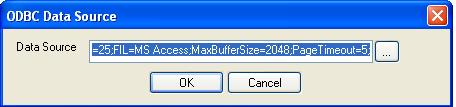
Click on the '...' button and select the ODBC datasource...
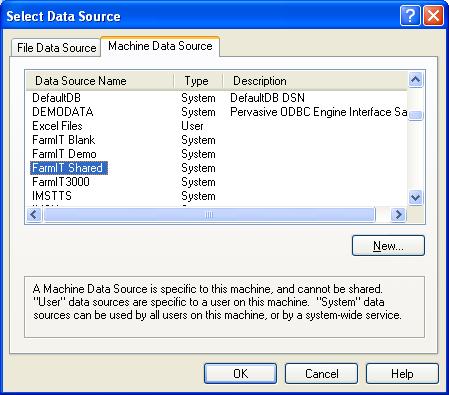
Click 'OK' to select it...
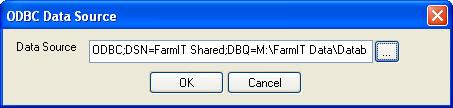
And finally 'OK' to connect and refresh the screen.
5. Set the FarmIT default Folders
You can change the default folder locations for reports, templates, maps etc from
the main file menu, 'FarmIT 3000 Configuration' option. This displays the configuration
options for the folders...