FarmIT 3000 - Running Multiple Farm Databases
The FarmIT 3000 database and software is designed to manage one farming business at a time. You can manage multiple 'Farms' with multiple holding numbers within the one business.
We do however understand that you may wish to run multiple farms that are officially
not linked. This article describes how you can set up another farm database other
than the default FarmIT database and then switch between the two farm databases
in order to manage them as separated business entities.
Create a New Farm Database Folder
The default FarmIT database 'FarmIT3000.mdb' file is located in the Database folder
of the installation. This is normally...
C:\Program Files\Border Software\FarmIT 3000\Database.
First you need to create a new folder to hold the new database. We would suggest
you give it the name of the farm, for example:
C:\Program Files\Border Software\FarmIT 3000\New Farm
Copy a Blank Database From the FarmIT CD
The FarmIT 3000 installation disk contains folders similar to the final
installation. You may therefore copy the blank farmIT3000.mdb database file from
the Database folder on the CD:
CD Drive:\Program Files\Border Software\FarmIT 3000\Database\FarmIT3000.mdb
Copy this file into you new folder.
Setup an ODBC Connection to the new database
The FarmIT Program connects to the database via an ODBC driver which needs some
basic information in order to connect to the data, this easily configurable.
First open the windows system 'Control Panel', you can normally do this from the
'Start' button in the bottom left hand corner of the screen.
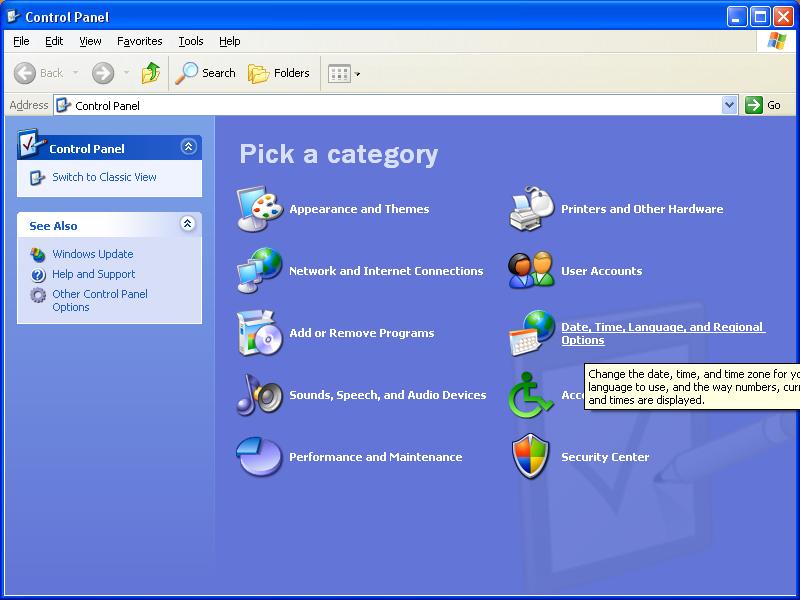
Switch to 'Classic View' - top left.....
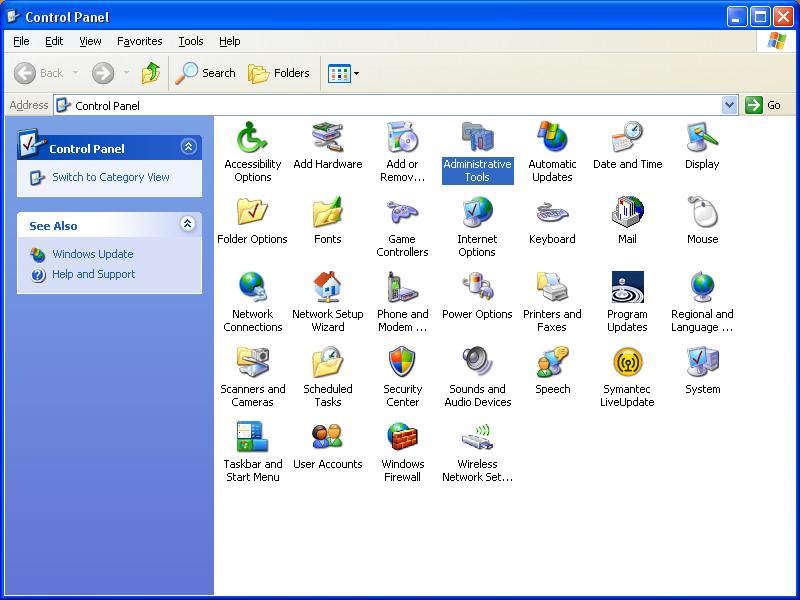
Then double click on the 'Administrative Tools' icon...
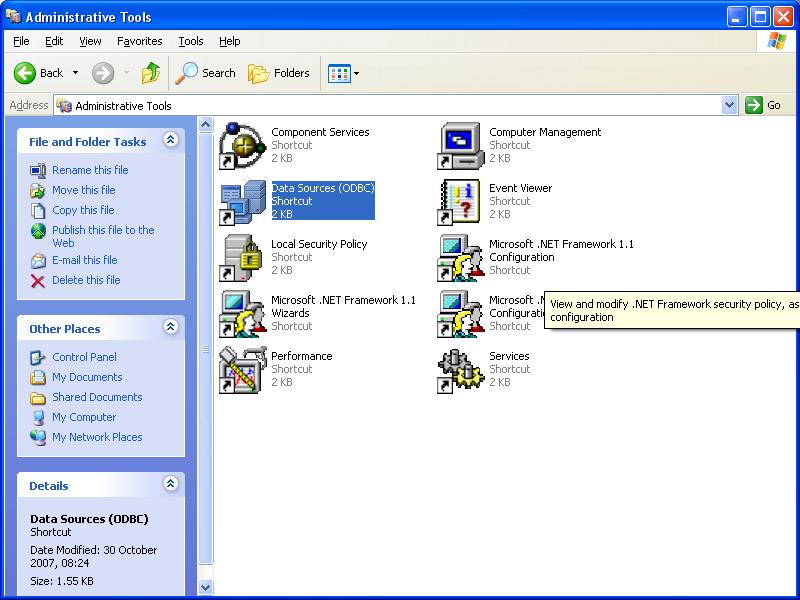
Double click on the 'Data Sources (ODBC)' icon to open the ODBC configuration
tool...
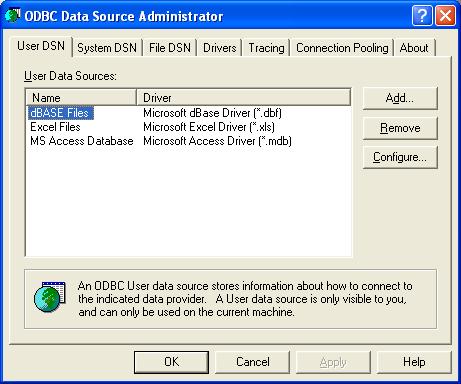
Select the 'System DSN' tab...
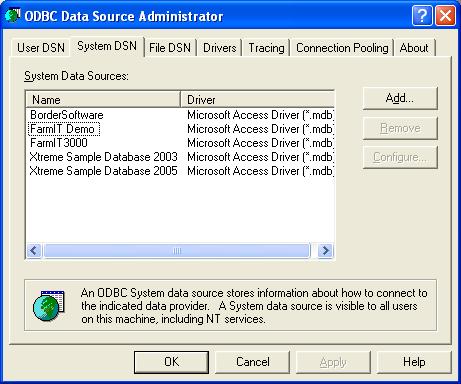
You will see a number of database configurations, yours will look similar but not
exactly like this one. Click the 'Add' button to start the process of adding and
configuring the new database...
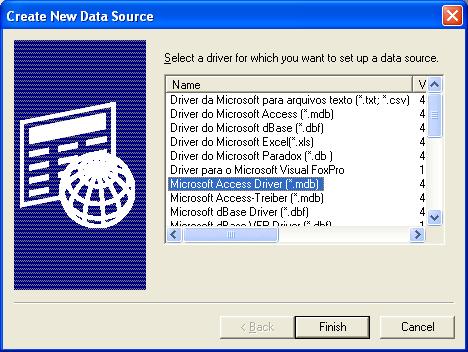
From the list of available ODBC drivers select the 'Microsoft Access Driver (*.mdb)'
option...
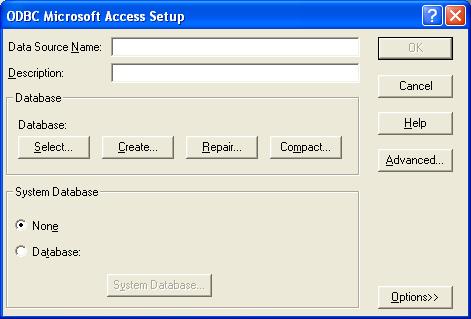
Enter a name for your new farm database...
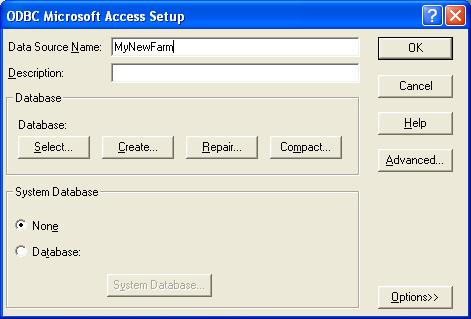
The click the 'Select' button to browse for and select the database file...
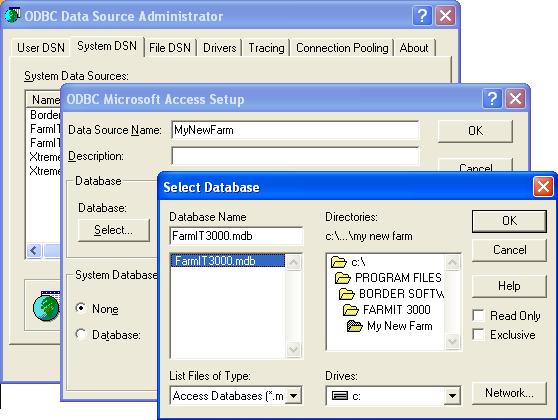
Finally click 'OK' to return to the setup and OK again to return to the ODBC Administrator...
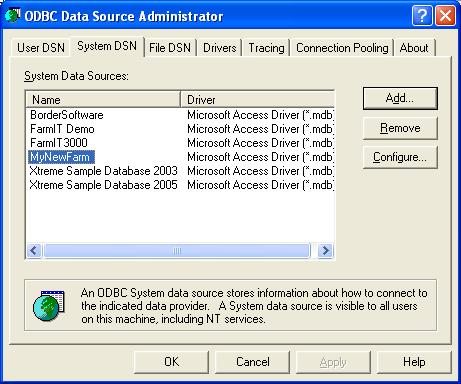
You may now close all windows and return to FarmIT 3000.
Switching Between Farm Databases
Once you have copied your new farm database and configured the ODBC, switching between farm databases is very simple. First open FarmIT 3000 in the normal way, this will
open with the standard default database. Then from the 'File' menu select the Database
source' option...
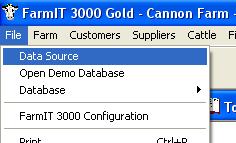
Select this to display the data source dialog...
.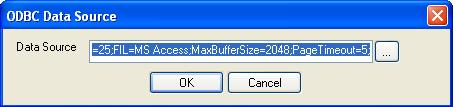
Then click the '...' button to select the database source from the ODBC Administrator...
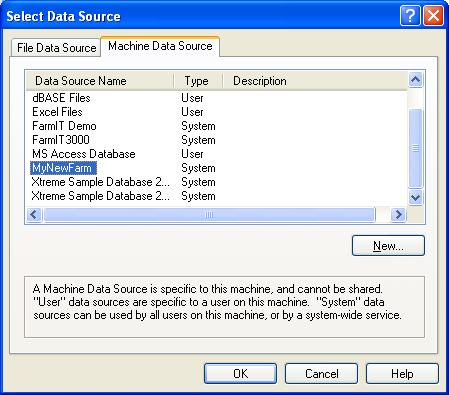
Select your 'New farm' database and click 'OK'...
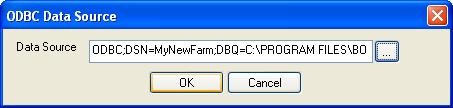
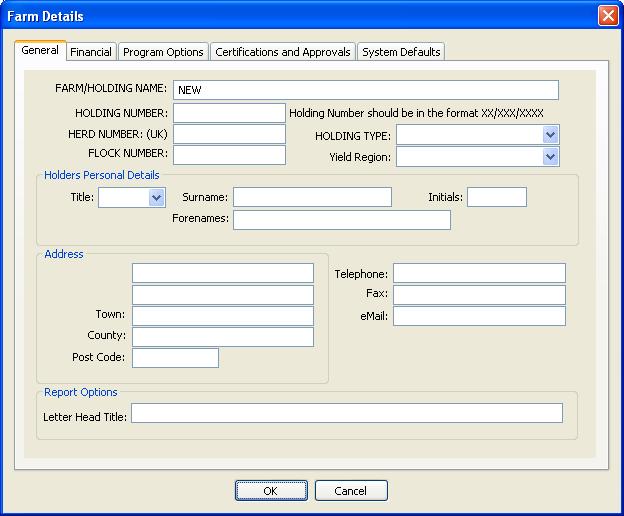
Click the 'OK' button to finally connect to and load the database. If this is the
first time you have connected to this blank database you will be prompted to complete
the Farm details screen...
Notes
FarmIT 3000 automatically connects to the last used database, so if you close the
program it will open the last database used.